Flutter: Check Internet Connection with connectivity_plus
To check the internet connection in a Flutter app, use the connectivity_plus package. It tells you whether the phone is on Wi-Fi, mobile data or no network at all, and when that changes. It can't tell you the internet actually works, so your requests still need to handle failure.
This is the Flutter version of SwiftUI: Check Internet Connection with NWPathMonitor. The approach is the same on both: watch the connection to update the UI, don’t use it to decide whether to make a request, and handle the request failing.
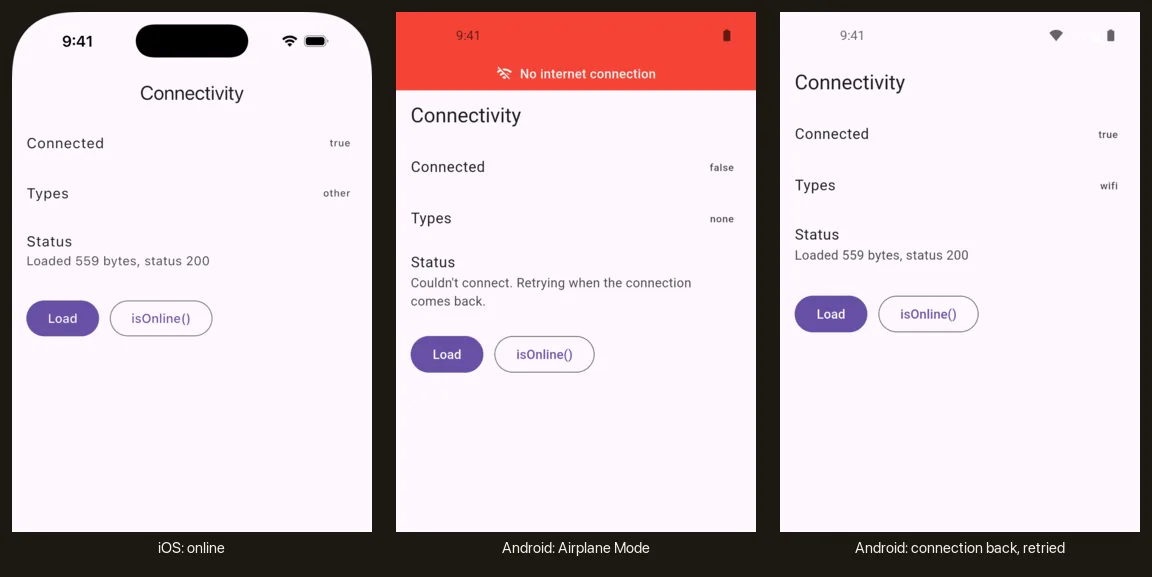
Add the packages
dependencies:
  connectivity_plus: ^7.3.1
  flutter:
    sdk: flutter
  http: ^1.6.0
http is only for the requests at the end. connectivity_plus 7.3 needs Xcode 26.1.1 or later for iOS and Android Gradle Plugin 8.12.1 or later for Android. On Android it adds the ACCESS_NETWORK_STATE permission to your manifest itself, and on iOS there is nothing to set up.
Check once
Future<bool> isOnline() async {
  final results = await Connectivity().checkConnectivity();
  return results.hasConnectivity;
}
checkConnectivity() returns a list of ConnectivityResult values such as wifi, mobile, ethernet and vpn. The list is never empty. With no connection it holds a single none, and that is the only case where hasConnectivity is false.
On the iOS simulator the Mac’s connection is reported as other, not wifi.
Watch the connection
This class listens to onConnectivityChanged and keeps the latest state where any widget can read it:
class NetworkMonitor extends ChangeNotifier {
  NetworkMonitor() {
    _subscription = Connectivity().onConnectivityChanged.listen(_update);
    _lifecycle = AppLifecycleListener(onResume: _recheck);
  }

  late final StreamSubscription<List<ConnectivityResult>> _subscription;
  late final AppLifecycleListener _lifecycle;
  bool _disposed = false;

  bool _isConnected = true;
  List<ConnectivityResult> _types = const [];

  bool get isConnected => _isConnected;
  List<ConnectivityResult> get types => _types;

  Future<void> _recheck() async {
    _update(await Connectivity().checkConnectivity());
  }

  void _update(List<ConnectivityResult> results) {
    if (_disposed) return;
    if (results.hasConnectivity == _isConnected &&
        listEquals(results, _types)) {
      return;
    }
    _isConnected = results.hasConnectivity;
    _types = results;
    notifyListeners();
  }

  /// Completes the next time the connection comes back after being lost.
  Future<void> whenReconnected() {
    final completer = Completer<void>();
    var wasConnected = _isConnected;
    void listener() {
      if (_isConnected && !wasConnected) {
        removeListener(listener);
        completer.complete();
      }
      wasConnected = _isConnected;
    }

    addListener(listener);
    return completer.future;
  }

  @override
  void dispose() {
    _disposed = true;
    _subscription.cancel();
    _lifecycle.dispose();
    super.dispose();
  }
}
onConnectivityChanged sends the current state as soon as you listen, and after that only when the list changes.
isConnected starts as true. The first real result replaces it almost straight away, and starting at false would flash the offline banner on every launch.
The monitor checks again when the app comes back to the foreground. On iOS the plugin drops updates that arrive while the app is in the background, so a connection that came back while the user was in Settings would otherwise still show as offline.
Keep one subscription for the whole app rather than one per screen. On iOS, when the last listener cancels, the plugin stops its network monitor, and a checkConnectivity() straight after that returns none while the phone is online.
Create the monitor in the root widget’s state, and dispose it there:
class _ConnectivityAppState extends State<ConnectivityApp> {
  final monitor = NetworkMonitor();

  @override
  void dispose() {
    monitor.dispose();
    super.dispose();
  }

  @override
  Widget build(BuildContext context) {
    return MaterialApp(
      title: 'Connectivity',
      debugShowCheckedModeBanner: false,
      builder: (context, child) =>
          OfflineBanner(monitor: monitor, child: child!),
      home: HomeScreen(monitor: monitor),
    );
  }
}
Don’t create it in main() before runApp(). AppLifecycleListener and the plugin’s platform channel need the Flutter binding, and it fails with “Binding has not yet been initialized”. If you want it in main(), call WidgetsFlutterBinding.ensureInitialized() first.
Show an offline banner
MaterialApp.builder wraps every route, so a banner placed there stays at the top while the user moves between screens:
class OfflineBanner extends StatelessWidget {
  const OfflineBanner({super.key, required this.monitor, required this.child});

  final NetworkMonitor monitor;
  final Widget child;

  @override
  Widget build(BuildContext context) {
    return ListenableBuilder(
      listenable: monitor,
      builder: (context, child) {
        final offline = !monitor.isConnected;
        return Column(
          children: [
            AnimatedSize(
              duration: const Duration(milliseconds: 250),
              child: offline
                  ? const _Banner()
                  : const SizedBox(width: double.infinity),
            ),
            Expanded(
              child: MediaQuery.removePadding(
                context: context,
                removeTop: offline,
                child: child!,
              ),
            ),
          ],
        );
      },
      child: child,
    );
  }
}

class _Banner extends StatelessWidget {
  const _Banner();

  @override
  Widget build(BuildContext context) {
    return Material(
      color: Colors.red,
      child: SafeArea(
        bottom: false,
        child: Padding(
          padding: const EdgeInsets.symmetric(vertical: 8),
          child: Row(
            mainAxisAlignment: MainAxisAlignment.center,
            children: const [
              Icon(Icons.wifi_off, color: Colors.white, size: 18),
              SizedBox(width: 8),
              Text(
                'No internet connection',
                style: TextStyle(
                  color: Colors.white,
                  fontWeight: FontWeight.w500,
                ),
              ),
            ],
          ),
        ),
      ),
    );
  }
}
The banner’s SafeArea puts its text below the status bar, and MediaQuery.removePadding stops the app bar underneath from adding that space a second time. AnimatedSize slides the banner open and closed.
Test it on an Android emulator by turning on Airplane Mode in Quick Settings, or with adb shell cmd connectivity airplane-mode enable. The iOS simulator uses the Mac’s connection and doesn’t reliably report changes to it, so for iOS use a device.
What connectivity_plus can’t tell you
A result of wifi or mobile means the phone has a network. It doesn’t mean that network reaches the internet. On Android the plugin reports any network that offers internet access, whether or not Android has confirmed it works, and on iOS it reports any network path that is available. On hotel Wi-Fi behind a login page, or on a router whose own connection is down, isConnected stays true, the stream sends nothing, and every request fails.
It also doesn’t tell you about Low Data Mode, whether the connection is metered, or whether the user has turned off mobile data for your app. On iOS that last case comes through as none, so the banner can only say “No internet connection”. The SwiftUI post shows how to read all three from NWPathMonitor on iOS.
Handle the failure
Don’t check isConnected and skip the request when it’s false. Make the request and handle the failure. These are the errors that mean the request never reached a server:
bool isOfflineError(Object error) =>
    error is http.ClientException || error is TimeoutException;
With the default client on Android and iOS, http wraps a SocketException (no network, a failed DNS lookup, a refused connection) in a ClientException. TimeoutException comes from the .timeout() you add to each request, because http has no timeout of its own.
Then retry when the connection comes back, with whenReconnected() from the monitor:
  Future<void> _load() async {
    try {
      final response = await http
          .get(_url)
          .timeout(const Duration(seconds: 15));
      _status =
          'Loaded ${response.bodyBytes.length} bytes, status ${response.statusCode}';
    } catch (error) {
      if (!isOfflineError(error)) rethrow;
      _status = "Couldn't connect. Retrying when the connection comes back.";
      _retryWhenReconnected();
    }
    if (mounted) setState(() {});
  }

  Future<void> _retryWhenReconnected() async {
    if (_waiting) return;
    _waiting = true;
    await widget.monitor.whenReconnected();
    _waiting = false;
    if (mounted) _load();
  }
whenReconnected() waits for the connection to come back after being lost, not for isConnected to be true. On Wi-Fi with no internet isConnected is already true, and a retry that only waited for that would send a new request the moment the last one failed, dozens a second. _waiting stops several failed loads from queueing several retries.
On that Wi-Fi the retry waits until the connection actually drops and returns, so give the user a way to try again as well. In the demo that is the Load button.
The full project, with tests for the monitor, is on GitHub: dipinkrishna/flutter/connectivity. Everything from this post except the demo screen is in one file, network_monitor.dart.
