Test fingerprint login in the Android emulator from the command line
The Android emulator's fingerprint sensor is a console command: adb emu finger touch 1. Getting to the point where that command does anything takes a PIN, a trip through the enrollment wizard and a wait for the sensor to start listening. All of it can be scripted, including a screenshot of a prompt that adb screencap returns as a black frame.
This is the Android side of Test Face ID in the iOS Simulator from the command line, and the testing half of the Flutter login and signup tutorial, which unlocks a saved session with a fingerprint through local_auth. Nothing here is specific to Flutter. The prompt is the system BiometricPrompt, so a Kotlin or React Native app behaves the same.
The commands were run on a Pixel 5 emulator with the Android 16 (API 36) Google APIs image and emulator 37.1. With more than one device attached, add -s emulator-5554 after each adb.
A fingerprint needs a screen lock first
On a fresh emulator there is no PIN, and Android will not enroll a fingerprint without one. An app that asks for biometrics gets an immediate failure. With local_auth that is LocalAuthExceptionCode.noCredentialsSet. Set a PIN:
adb shell locksettings set-pin 1234If the emulator was sitting on its lock screen, it now wants that PIN:
adb shell input keyevent KEYCODE_WAKEUP
adb shell input text 1234
adb shell input keyevent KEYCODE_ENTER
Enroll a finger
There is no single command for this. The enrollment wizard has to be opened and walked through:
adb shell am start -a android.settings.FINGERPRINT_ENROLLIt asks for the PIN again, shows a consent screen with More and then I agree, and stops at “Touch the sensor”. From there the sensor is the emulator console:
adb emu finger touch 1
adb emu finger remove 1
The number is the finger’s id. Three touch and remove pairs finish the enrollment, and the screen changes to “Fingerprint added”. Finger 1 is now the enrolled one, and any other id is a stranger’s finger. Check the result with:
adb shell dumpsys fingerprint | grep -o '"count":[0-9]*' | head -1
"count":1
The buttons can be tapped without knowing their coordinates. uiautomator dump writes the screen as XML with the text and bounds of every element, so a small function can find a button by its label and tap the middle of it. The whole setup as one script:
#!/bin/bash
# Give a fresh emulator a PIN and one enrolled fingerprint (finger id 1).
set -euo pipefail
PIN="${1:-1234}"

# Tap the first thing on screen whose text is exactly $1. Fails if it is not there.
tap() {
  adb shell uiautomator dump /sdcard/ui.xml > /dev/null
  local xy
  xy=$(adb shell cat /sdcard/ui.xml | tr '>' '\n' | grep "text=\"$1\"" | head -1 \
    | sed -E 's/.*bounds="\[([0-9]+),([0-9]+)\]\[([0-9]+),([0-9]+)\]".*/\1 \2 \3 \4/' \
    | awk '{ print int(($1 + $3) / 2), int(($2 + $4) / 2) }')
  [ -n "$xy" ] && adb shell input tap $xy
}

focus() { adb shell dumpsys window | grep -m1 mCurrentFocus; }

touch_finger() {
  adb emu finger touch "$1" > /dev/null
  sleep 0.7
  adb emu finger remove "$1" > /dev/null
  sleep 1
}

adb shell locksettings set-pin "$PIN"
adb shell input keyevent KEYCODE_WAKEUP
adb shell wm dismiss-keyguard
sleep 1
if focus | grep -q NotificationShade; then        # the lock screen is asking for the PIN
  adb shell input text "$PIN"
  adb shell input keyevent KEYCODE_ENTER
  sleep 2
fi

adb shell am start -a android.settings.FINGERPRINT_ENROLL > /dev/null
sleep 3
adb shell input text "$PIN"                       # "Re-enter your PIN"
adb shell input keyevent KEYCODE_ENTER
sleep 3

while tap "MORE"; do sleep 1; done                # scroll the consent screen to the end
tap "I AGREE"
sleep 3

until focus | grep -q FingerprintEnrollFinish; do
  touch_finger 1
done
tap "DONE"
adb shell input keyevent KEYCODE_HOME

adb shell dumpsys fingerprint | grep -o '"count":[0-9]*' | head -1
It takes about 27 seconds on a clean emulator. The labels are the ones on the Pixel image used here and are matched exactly, so another image or language needs its own strings.
The PIN and the fingerprint are stored in the emulator’s data and survive a restart. After a boot the lock screen asks for the PIN once before it accepts a finger, as a phone does. Once that is done, a touch with finger 1 unlocks the lock screen too, which helps when a script has let the screen sleep. To go back to a clean device:
adb shell locksettings clear --old 1234
Clearing the PIN removes the enrolled fingerprints with it.
Wait for the sensor, not the window
When the app asks for a fingerprint, the prompt window appears and the sensor starts a moment later. A touch sent in between is dropped, and so is one sent before the prompt exists. Nothing is queued.
dumpsys fingerprint shows the operation the sensor is running and which app owns it. It goes through two states:
adb shell dumpsys fingerprint | grep -m1 "Current operation"
Current operation: {[48] com.android.server.biometrics.sensors.fingerprint.aidl.FingerprintAuthenticationClient, proto=3, owner=com.example.bioprobe, cookie=1181126144, requestId=24, userId=0}, State: 4
Current operation: {[48] com.android.server.biometrics.sensors.fingerprint.aidl.FingerprintAuthenticationClient, proto=3, owner=com.example.bioprobe, cookie=1181126144, requestId=24, userId=0}, State: 2
The prompt is already on screen during State: 4, and a touch then does nothing. State: 2 is the sensor listening. Checking the focused window for BiometricPrompt is not enough for the same reason. The owner= field is the package that asked, so the check can also confirm it is your app’s prompt and not the lock screen’s.
Answer the prompt
#!/bin/bash
# Launch an app, wait for its fingerprint prompt, and answer it.
set -euo pipefail
PKG="$1"; ACTIVITY="${2:-.MainActivity}"; FINGER="${3:-1}"

# Succeeds once the sensor is listening on behalf of $PKG.
wait_for_sensor() {
  for _ in $(seq 1 40); do
    if adb shell dumpsys fingerprint | grep -m1 "Current operation" \
        | grep -q "FingerprintAuthenticationClient.*owner=$PKG.*State: 2"; then
      return 0
    fi
    sleep 0.3
  done
  echo "no fingerprint prompt from $PKG" >&2
  return 1
}

touch_finger() {
  adb emu finger touch "$1" > /dev/null
  sleep 0.7
  adb emu finger remove "$1" > /dev/null
  sleep 1
}

adb shell am force-stop "$PKG"
adb shell am start -n "$PKG/$ACTIVITY" > /dev/null
wait_for_sensor
touch_finger "$FINGER"
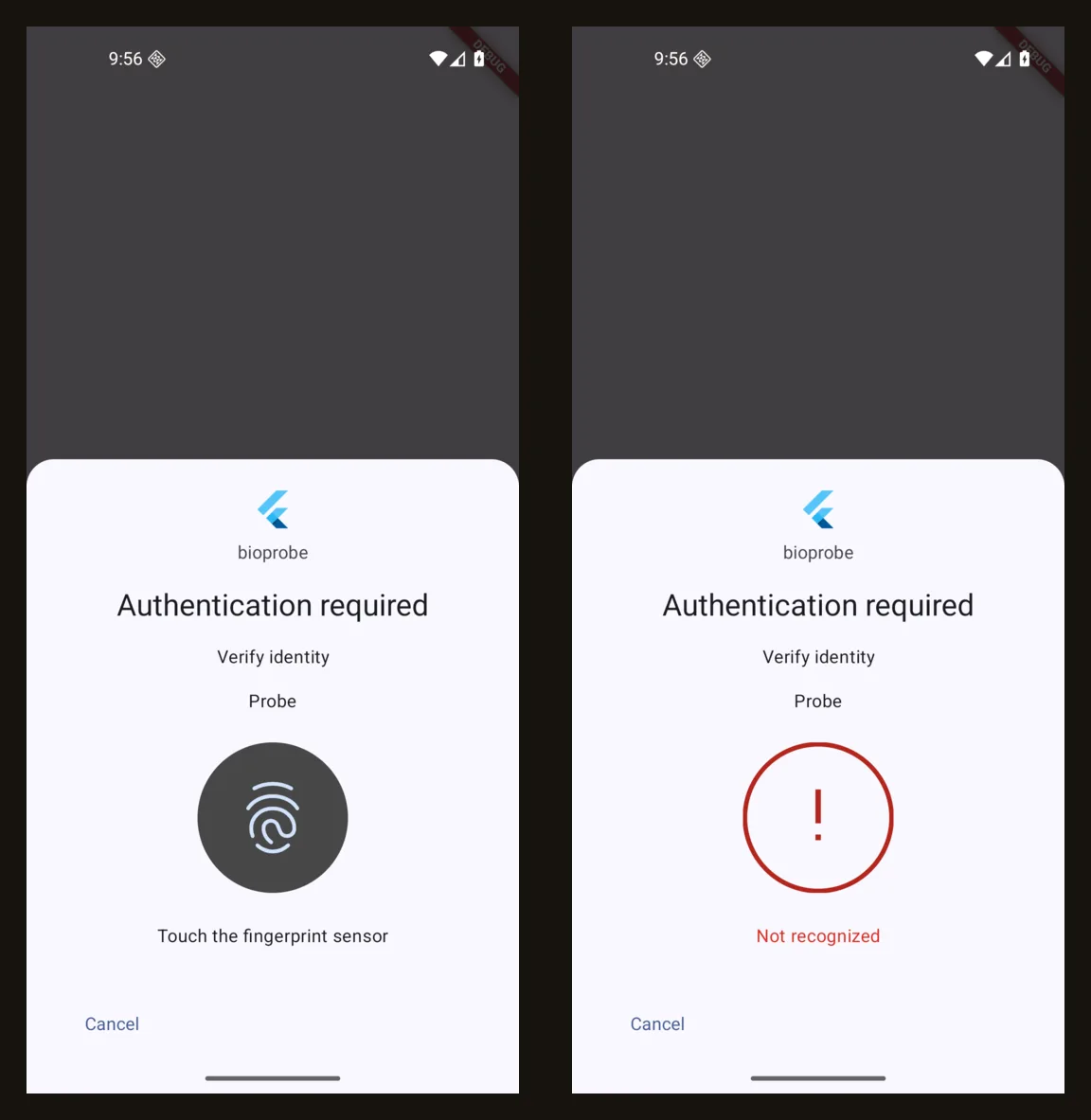
Run it as ./fingerprint-test.sh com.example.myapp, with the activity and the finger id as optional second and third arguments. Finger 1 completes the authentication with success. Finger 2 does not complete it: the prompt shows “Not recognized” for a second and goes back to waiting, and the app’s call is still pending. Touching with finger 1 after that succeeds, so “wrong finger, then right finger” is two touches.
Repeated wrong fingers end the call. The prompt shows “Too many attempts. Use screen lock instead.” and local_auth throws LocalAuthExceptionCode.temporaryLockout. In these runs that came on the third or fourth wrong touch in a row. A phone allows five.
To test the cancel path, tap the prompt’s own button. Its id is com.android.systemui:id/button_negative, and the label is whatever the app passed, “Cancel” by default:
tap "Cancel"                              # the tap function from the setup script
adb shell input keyevent KEYCODE_BACK     # or the back key
Both give LocalAuthExceptionCode.userCanceled.
Screenshots of the prompt
The prompt is a secure window. adb exec-out screencap -p returns the status bar on a black frame. The emulator can take the picture from outside Android instead:
adb emu screenrecord screenshot /absolute/path/to/a/folder
That writes Screenshot_<timestamp>.png into the folder with the prompt visible. The image at the top of this post was made that way.
uiautomator dump is not blocked by the secure flag. It returns the prompt’s title, subtitle, description and current message, which is the way to assert on what the prompt says:
adb shell uiautomator dump /sdcard/ui.xml > /dev/null
adb shell cat /sdcard/ui.xml | tr '>' '\n' | grep -o 'text="[^"][^"]*" resource-id="com.android.systemui:id/[a-z_]*"'
text="bioprobe" resource-id="com.android.systemui:id/logo_description"
text="Authentication required" resource-id="com.android.systemui:id/title"
text="Verify identity" resource-id="com.android.systemui:id/subtitle"
text="Probe" resource-id="com.android.systemui:id/description"
text="Touch the fingerprint sensor" resource-id="com.android.systemui:id/indicator"
text="Cancel" resource-id="com.android.systemui:id/button_negative"
The indicator row is the message under the icon. It changes to “Not recognized” after a wrong finger and to the lockout text after too many.
Counting what the sensor saw
The same dumpsys fingerprint output keeps running totals:
{"service":"FingerprintProvider\/default","prints":[{"id":0,"count":1,"accept":12,"reject":15,"acquire":31,"lockout":4,"permanentLockout":0,"acceptCrypto":0,"rejectCrypto":0,"acquireCrypto":0}]}accept and reject go up by one for each touch the sensor matched or refused. A touch that was dropped because the sensor was not listening changes neither, and acquire stays where it was. Reading the counters before and after a step is a quick way to tell “the app ignored the result” from “the touch never arrived”.
What the emulator does not test
Lockout is not held the way a phone holds it. Straight after “Too many attempts”, a new prompt accepted the enrolled finger. On a device the sensor refuses everything for 30 seconds. Test the app’s handling of temporaryLockout here, and the timing on real hardware.
