Test Face ID in the iOS Simulator from the command line
The Simulator's Features menu has three Face ID items: Enrolled, Matching Face and Non-matching Face. All three are notifications you can post with simctl, so a script can enroll a face, wait for the prompt and answer it. The one thing the simulator will not do is enforce biometric access control on a Keychain item.
Features → Face ID → Enrolled, then Matching Face, works while you are sitting at the Simulator window. A UI test, a screenshot script or a CI job has no menu to click. The same three actions are Darwin notifications inside the simulator, and notifyutil posts them. This is the testing side of the SwiftUI login and signup tutorial, which locks a saved session behind Face ID. The Android version of this post is Test fingerprint login in the Android emulator from the command line.
The commands work with Xcode 27 on iOS 26.5 and iOS 27.0 simulators. $UDID is the simulator’s identifier from xcrun simctl list devices, or booted if only one is running.
Enroll a face
xcrun simctl spawn "$UDID" notifyutil \
  -s com.apple.BiometricKit.enrollmentChanged 1 \
  -p com.apple.BiometricKit.enrollmentChanged
-s sets the notification’s state to 1 and -p posts it. Both are needed. Setting the state without posting changes nothing, and posting while the state is 0 changes nothing either. To remove the enrollment, set 0 and post again.
LAContext sees the difference straight away:
let context = LAContext()
var error: NSError?
let ready = context.canEvaluatePolicy(.deviceOwnerAuthenticationWithBiometrics, error: &error)

// before enrolling:  ready == false, error.code == -7  (LAError.biometryNotEnrolled)
// after enrolling:   ready == true,  context.biometryType == .faceID
Enrollment does not survive a restart of the simulator. After simctl shutdown and simctl boot the state is back to 0, so a script should enroll every time it boots a device.
Answer the prompt
# a face that matches
xcrun simctl spawn "$UDID" notifyutil -p com.apple.BiometricKit_Sim.pearl.match

# a face that does not
xcrun simctl spawn "$UDID" notifyutil -p com.apple.BiometricKit_Sim.pearl.nomatch
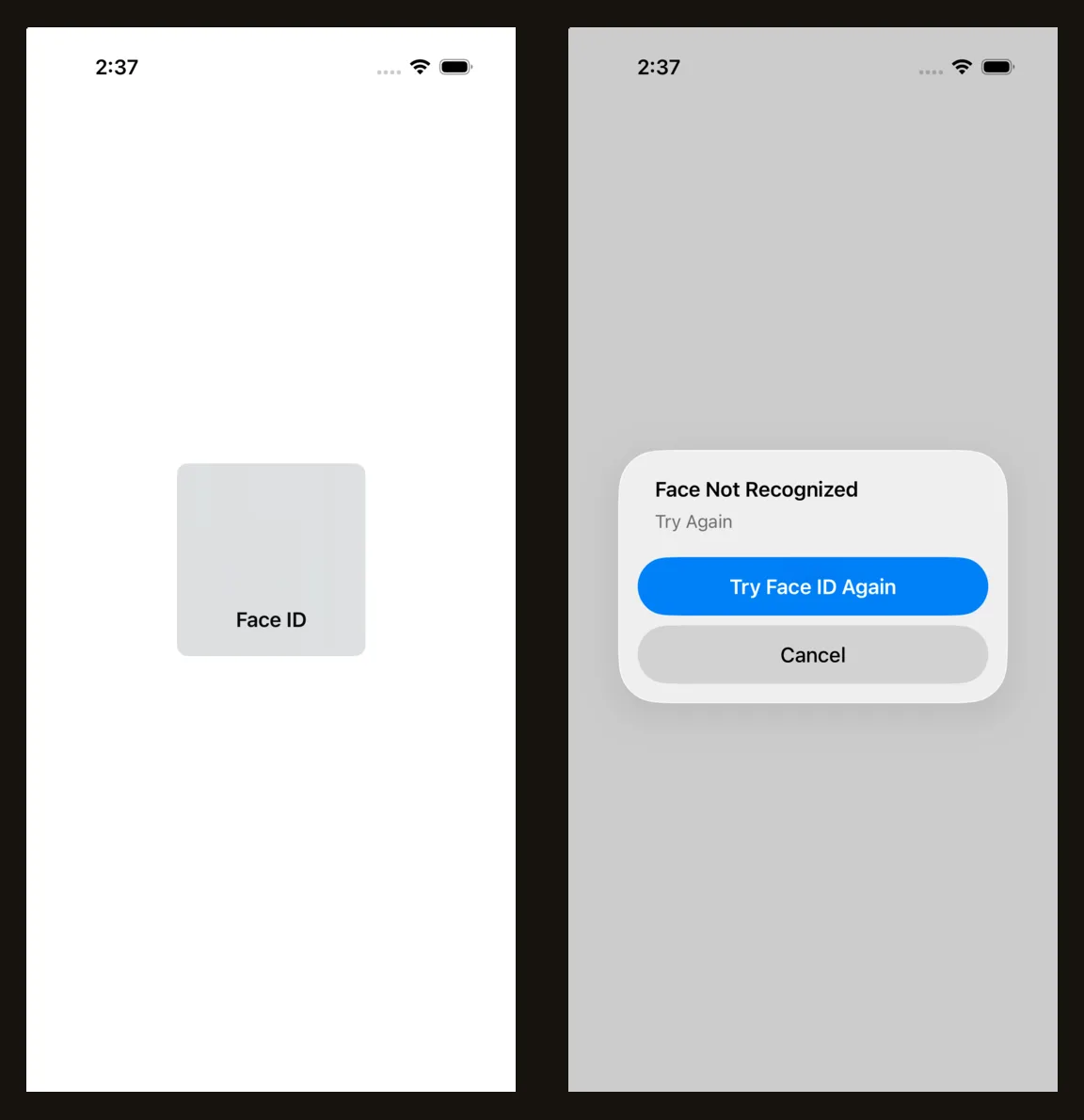
A match completes evaluatePolicy with success. A non-match does not complete it at all: the system shows a “Face Not Recognized” alert with Try Face ID Again and Cancel, and your completion handler keeps waiting. A match posted while that alert is on screen is accepted and the call succeeds, so a script can test the “wrong face, then right face” path with two commands and no taps.
A match posted before the prompt exists is thrown away. It is not queued for the next prompt. Posting the match right after simctl launch is a race the script loses whenever the app takes a moment longer to ask.
Wait until the prompt is really up
coreauthd, the daemon behind LocalAuthentication, logs a line when it starts looking for a face:
xcrun simctl spawn "$UDID" log show --last 15s --style compact --predicate \
  'subsystem == "com.apple.LocalAuthentication" AND eventMessage CONTAINS "will start matching"'
2026-10-11 02:22:29.691 Df coreauthd[35286:2836648] [com.apple.LocalAuthentication:Server,Interactive,Biometry] MechanismPearl[27](run)(par:28) will start matching user 502
That line is the signal to post the match. xcrun simctl io "$UDID" screenshot also captures the prompt, which shows what a failed run had on screen.
Touch ID devices
The same commands work on a simulator with Touch ID, such as an iPad mini. Enrollment is the same notification, biometryType is .touchID, and the log line names MechanismTouchId where a Face ID device says MechanismPearl, so the “will start matching” check works for both.
The finger versions of the answer are com.apple.BiometricKit_Sim.fingerTouch.match and fingerTouch.nomatch. On iOS 26.5 either pair answers either kind of prompt: pearl.match completes a Touch ID prompt and fingerTouch.match completes a Face ID one. Using the name that matches the device is still the safer choice.
A script that does all of it
#!/bin/bash
set -euo pipefail
UDID="$1"; APP="$2"; shift 2

sim() { xcrun simctl spawn "$UDID" "$@"; }

enroll() {
  sim notifyutil -s com.apple.BiometricKit.enrollmentChanged 1 \
                 -p com.apple.BiometricKit.enrollmentChanged
}

# Succeeds once a biometric prompt has come up since $1 ("YYYY-MM-DD HH:MM:SS").
wait_for_prompt() {
  for _ in $(seq 1 20); do
    if sim log show --start "$1" --predicate \
        'subsystem == "com.apple.LocalAuthentication" AND eventMessage CONTAINS "will start matching"' \
        2> /dev/null | grep -q "will start matching"; then
      return 0
    fi
    sleep 1
  done
  echo "no biometric prompt after 20 tries" >&2
  return 1
}

xcrun simctl bootstatus "$UDID" -b > /dev/null
enroll

since=$(date '+%Y-%m-%d %H:%M:%S')
xcrun simctl launch --terminate-running-process "$UDID" "$APP" "$@" > /dev/null
wait_for_prompt "$since"
xcrun simctl io "$UDID" screenshot prompt.png

sim notifyutil -p com.apple.BiometricKit_Sim.pearl.match
sleep 2
xcrun simctl io "$UDID" screenshot unlocked.png
Run it as ./faceid-test.sh <udid> com.example.MyApp, with any launch arguments for the app after the bundle id. bootstatus -b boots the device if needed and returns when it has finished booting. --start limits the log search to lines written after the launch, so a prompt from an earlier run cannot satisfy the wait. If the app never asks for Face ID, the script exits with an error after about 45 seconds.
The simulator does not enforce Keychain access control
This is the part that can make a broken app look fine. Save a Keychain item that requires the currently enrolled biometrics:
let access = SecAccessControlCreateWithFlags(
    nil,
    kSecAttrAccessibleWhenPasscodeSetThisDeviceOnly,
    .biometryCurrentSet,
    nil
)

let add: [String: Any] = [
    kSecClass as String: kSecClassGenericPassword,
    kSecAttrService as String: "demo",
    kSecAttrAccount as String: "token",
    kSecValueData as String: Data("s3cret".utf8),
    kSecAttrAccessControl as String: access as Any,
]
SecItemAdd(add as CFDictionary, nil)   // 0 (errSecSuccess)
On an iPhone, reading that item brings up Face ID, and reading it with a context that has interactionNotAllowed set fails with errSecInteractionNotAllowed (-25308). In the simulator:
var query: [String: Any] = [
    kSecClass as String: kSecClassGenericPassword,
    kSecAttrService as String: "demo",
    kSecAttrAccount as String: "token",
    kSecReturnData as String: true,
]
var result: CFTypeRef?
SecItemCopyMatching(query as CFDictionary, &result)   // 0, "s3cret", no prompt

let silent = LAContext()
silent.interactionNotAllowed = true
query[kSecUseAuthenticationContext as String] = silent
SecItemCopyMatching(query as CFDictionary, &result)   // 0, "s3cret"
Both reads return the secret immediately and no prompt appears. The item is stored the way you asked: its row in the simulator’s data/Library/Keychains/keychain-2-debug.db has protection class akpu, which is kSecAttrAccessibleWhenPasscodeSetThisDeviceOnly. The check on the way out is what is missing. .biometryCurrentSet is not simulated either. Removing the enrollment and enrolling again leaves the item readable, where a real device invalidates it.
Two things follow for the app and its tests:
- Do not let the Keychain read be the prompt. Evaluate an
LAContextfirst, then read the item with that context inkSecUseAuthenticationContext. The prompt then appears in the simulator and on a device alike, and a protected item opens without a second prompt. - Do not use “can I read the protected item without a prompt” to decide whether the app is locked. In the simulator the answer is always yes. Keep a plain “Face ID unlock is on” flag for choosing the screen, and leave the access control to protect the secret on real hardware.
The access control itself can only be tested on a device. What the simulator tests is the flow around it: the prompt appears when it should, a wrong face keeps the app locked, and a right one lets it in.
